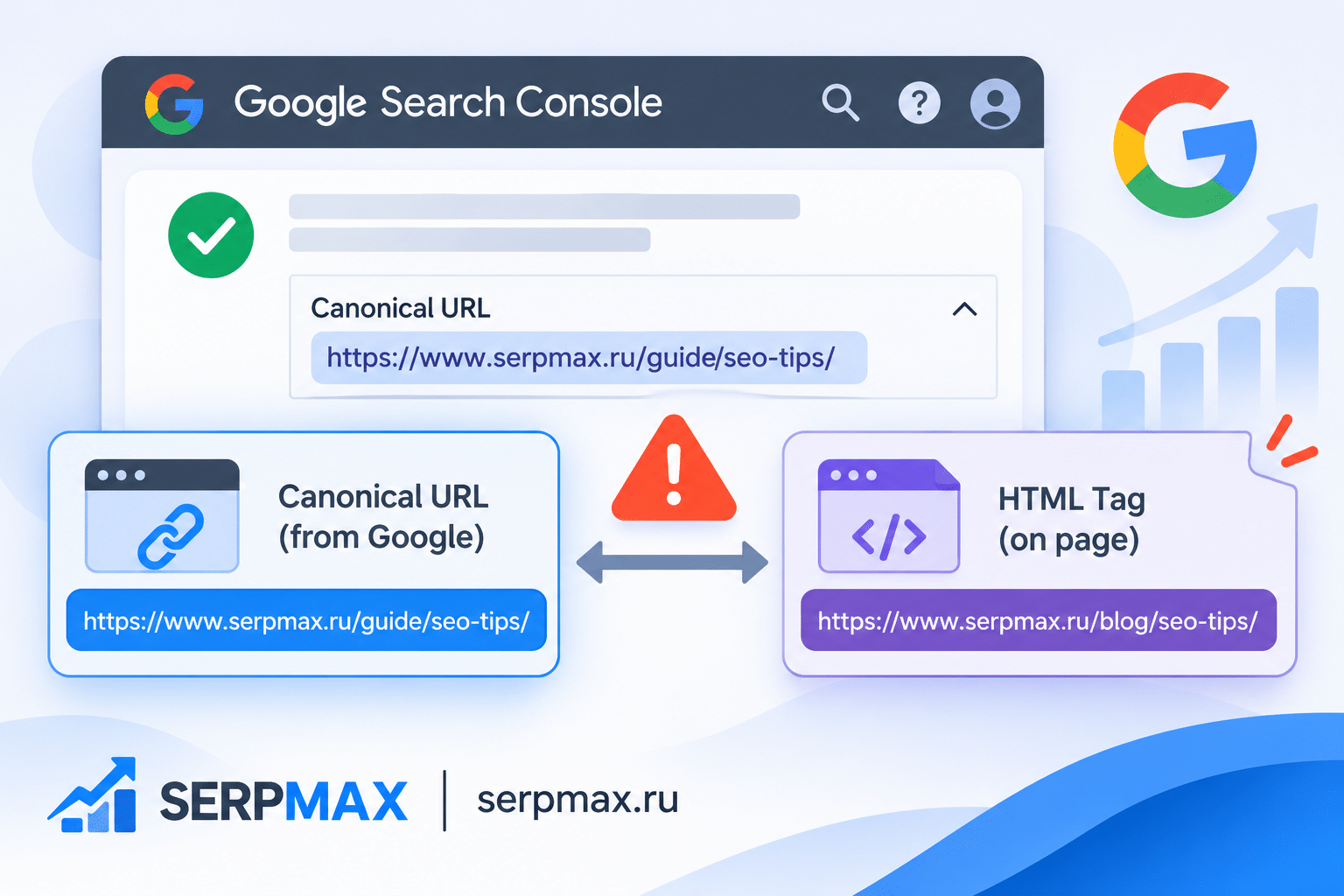
You check the canonical tag in your HTML. It points to the URL you want indexed. Then you open Google Search Console and inspect the page. The Google-selected canonical is a different URL. Not the one you specified. Not even close, in some cases.
This is not a bug in Search Console. It means Google found a signal that overrides or contradicts your HTML canonical tag. The signal could be in an HTTP header, added by a CMS, injected by JavaScript, or inferred by Google when the tag is missing or ignored.
This guide explains why Search Console shows a different canonical than your HTML, how to find the source of the conflicting signal, and how to fix it.
How to see what Google thinks the canonical is
Google Search Console shows two canonical values in URL Inspection: User-declared canonical and Google-selected canonical.
User-declared canonical is what Google found in your HTML or HTTP headers. If this value is wrong, the tag itself is wrong — or there are multiple conflicting tags.
Google-selected canonical is what Google actually uses for indexing. If this value differs from the user-declared canonical, Google found a reason to override your declaration. This is the value that matters for search results.
Open URL Inspection, enter your URL, and expand the Indexing section. Look at both values. If they match, the canonical is working as intended. If they differ, the cause is one of the four reasons below.
Reason 1: canonical set by HTTP header
Canonical tags can be set in two places: the HTML link rel="canonical" tag, and the HTTP Link header. The HTTP header has higher priority in some cases, or can conflict with the HTML tag if both are present and point to different URLs.
This is common on sites behind a CDN or reverse proxy. The CDN may add a Link header with a canonical URL that differs from the HTML tag. Or a server module may add the header automatically.
How to check: use the HTTP headers lookup tool on the URL. Look for a Link header with rel="canonical". If present, compare the URL in the header to the URL in the HTML tag. If they differ, the header may be the source of the problem.
The fix: remove the conflicting header or align it with the HTML tag. If the header is added by a CDN, check the CDN configuration. If it is added by a server module, disable that module or configure it to use the correct canonical URL.
If the canonical is set only in the HTTP header and not in the HTML, Google may still use it — but the HTML tag is more visible and easier to audit. It is better to have the canonical in the HTML and remove the header, unless the header is necessary for non-HTML resources.
Reason 2: CMS or plugin overrides the HTML canonical
Many CMS platforms and SEO plugins generate the canonical tag dynamically. If the plugin has a setting for the canonical URL, or if it generates the canonical based on a template, it may override the value you set manually.
A common scenario: you add a canonical tag in the page content or a custom field, but the SEO plugin also outputs its own canonical tag. The result is two canonical tags on the page. Google sees both and may choose one — often not the one you intended.
Another scenario: the plugin generates a canonical URL based on the site URL setting. If the site URL is set to www.example.com but the page is accessed at example.com, the plugin may output a canonical to www.example.com even if you wanted example.com.
How to check: view the page source and search for rel="canonical". Count how many canonical tags are present. If there are two or more, the CMS or plugin is adding one. Use the canonical tag checker to see the canonical value and detect duplicates.
The fix: disable the plugin-generated canonical if you want to set it manually, or configure the plugin to output the correct URL. In most SEO plugins, there is a setting to disable the canonical or to override it per page. Check the plugin documentation for the specific CMS.
Reason 3: JavaScript changes the canonical after load
If the canonical tag is added or modified by JavaScript, Google may see a different canonical depending on whether it renders JavaScript before or after indexing. Google renders JavaScript, but the timing can vary. The canonical in the initial HTML may differ from the canonical after JavaScript runs.
This happens on sites that use client-side frameworks (React, Vue, Angular) or on pages where a script updates the canonical tag based on user interaction, URL parameters, or other dynamic conditions.
How to check: view the page source (not the rendered DOM) and search for rel="canonical". If the canonical is missing in the source but present in the browser, JavaScript is adding it. If the canonical in the source differs from the canonical in the browser, JavaScript is changing it.
Use the canonical tag checker on the URL. The tool fetches the initial HTML, which is what Googlebot sees first. If the canonical is missing or different from what you see in the browser, JavaScript is the cause.
The fix: ensure the canonical tag is present in the initial HTML, not added by JavaScript. If the canonical must be dynamic, use server-side rendering to output the correct canonical before the page is sent to the client. Avoid changing the canonical after load — Google may not process the change consistently.
Reason 4: Google chooses a different canonical
Even if your canonical tag is correct and unambiguous, Google may choose a different canonical if it finds stronger signals pointing to another URL. This is the most frustrating case because the tag is not wrong — Google is overriding it based on other factors.
Signals that can cause Google to override the canonical:
— Redirects pointing to a different URL. If the page redirects to another URL, Google may treat the redirect target as canonical.
— Internal links pointing to a different URL. If most internal links point to URL B, Google may see URL B as more important than URL A, even if URL A has the canonical tag.
— Sitemap including a different URL. If the sitemap lists URL B but the canonical says URL A, Google receives conflicting signals.
— Content duplication on other URLs. If the same content is available on another URL without a canonical, Google may choose that URL.
— Historical signals. If a URL has been indexed for a long time and has external links, Google may be reluctant to switch to a new canonical.
How to check: compare the URL that Google selected as canonical with the URL you specified. Then check the signals above. Use the internal links checker to see which URL internal links point to. Use the sitemap checker to see which URL is in the sitemap. Check for redirects on both URLs.
The fix: align all signals to the URL you want indexed. Update internal links, update the sitemap, ensure redirects point to the correct URL, and remove or canonicalize duplicate content. The canonical tag alone is not enough if other signals contradict it.
For a deeper explanation of why Google may ignore the canonical tag entirely, the article on why canonical tags are ignored covers the common override scenarios.
How to find the actual canonical Google uses
Search Console is the most direct source, but there are other ways to confirm.
Method 1: Search for the page content. Use a unique phrase from the page and search in Google. If the result shows a different URL, that URL is the indexed canonical.
Method 2: Check the Google cache. Use the Google cache checker on both URLs. The cached version that shows your content is the one Google has indexed.
Method 3: Use the site: operator with the exact URL. If site:yourdomain.com/page-a returns results, page A is indexed. If it returns page B instead, page B is the canonical.
Method 4: Inspect the HTTP headers. A Link header with rel="canonical" may be set by the server. Use the HTTP headers lookup to see if this header exists and what URL it points to.
How to fix the mismatch
The fix depends on the cause, but the sequence is the same.
Step 1: Identify the source of the conflicting signal. Is it an HTTP header, a CMS plugin, JavaScript, or a signal conflict (links, sitemap, redirects)? Use the checks above to find the source.
Step 2: Remove or align the conflicting signal. If the header points to a different URL, fix or remove it. If a plugin overrides the canonical, configure it correctly. If JavaScript changes the canonical, move it to the initial HTML. If other signals point to a different URL, update them.
Step 3: Confirm the HTML canonical is correct. Use the canonical tag checker to verify that the page has exactly one canonical tag, in the initial HTML, pointing to the URL you want indexed.
Step 4: Request re-indexing. In Search Console, use URL Inspection → Request Indexing. This prompts Google to re-crawl the page and re-evaluate the canonical.
Step 5: Monitor. Check Search Console again after a few days to a week. The Google-selected canonical should change to match your user-declared canonical. If it does not, re-check the signals. Google may need more time or more consistent signals.
FAQ
Why does Google show a canonical that I never set?
Google can select a canonical even if you did not declare one. If the page has no canonical tag, or if Google finds stronger signals pointing to another URL, it chooses its own canonical. This is called the Google-selected canonical.
Can two canonical tags cause a mismatch?
Yes. If the page has two canonical tags — one from the HTML and one from a plugin or header — Google may choose one arbitrarily or ignore both. Remove duplicate canonical tags.
Does the HTTP Link header override the HTML canonical?
In some cases, yes. The HTTP header has higher priority in certain contexts, especially for non-HTML resources. For HTML pages, Google usually prefers the HTML tag, but conflicting signals can cause it to choose the header instead. It is best to have only one canonical source.
How long does it take for Google to update the selected canonical?
After fixing the signal, it can take days to weeks. Google needs to re-crawl the page and re-process the signals. Requesting indexing speeds up the crawl but does not guarantee a faster canonical update.
What if Google ignores my canonical and indexes a parameter URL?
This usually means Google sees the parameter URL as more important or as the original version. Check internal links and sitemap for parameter URLs. Add canonical tags to the parameter URLs pointing to the clean URL. If the parameter URLs are generated by the CMS, configure the CMS to use clean URLs or add the canonical dynamically.