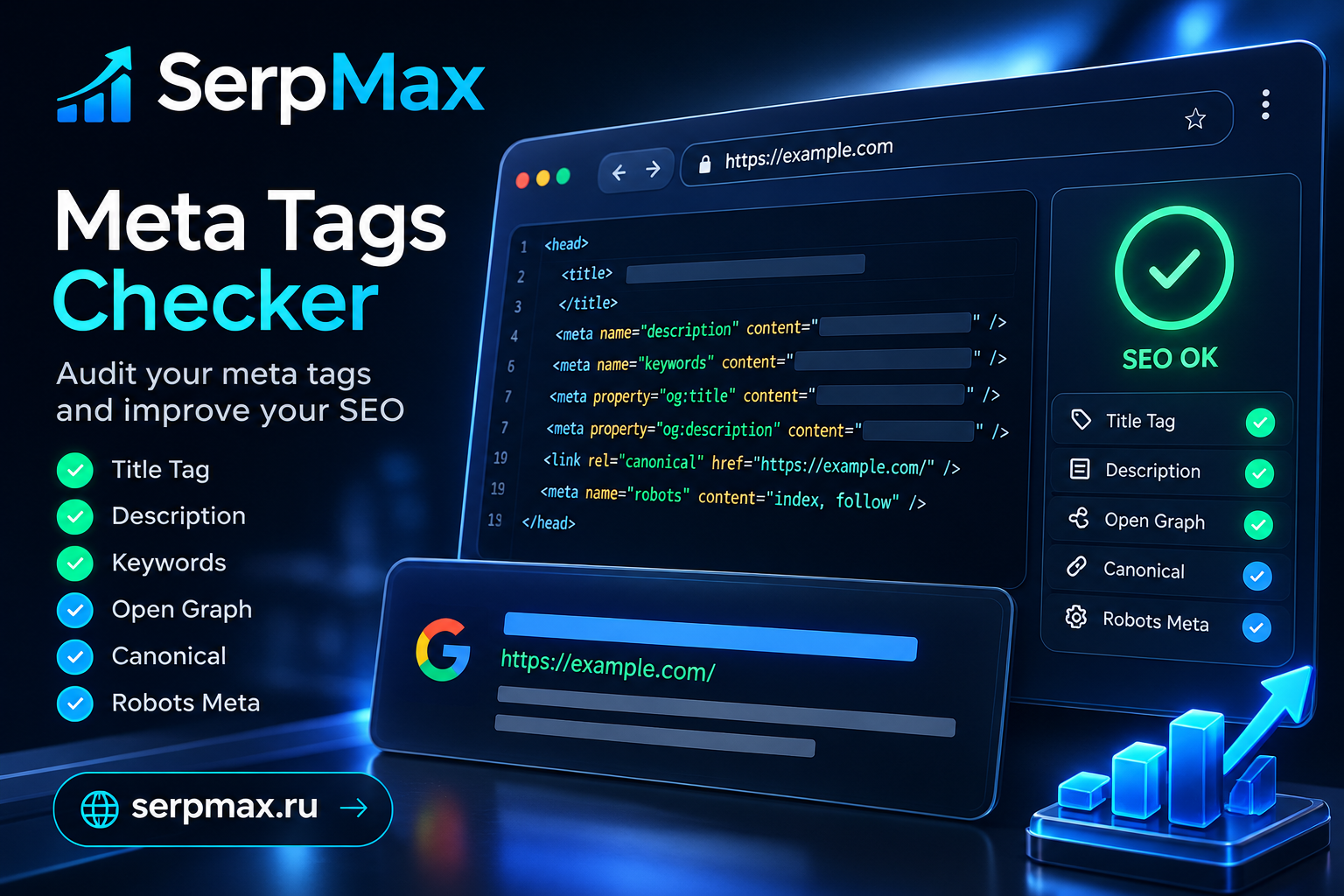
Meta tags are HTML elements that tell search engines and browsers about your page. They do not appear on the page itself, but they affect indexing, snippets, and social sharing. If meta tags are missing, incorrect, or duplicated, your page may not rank well or may look broken in search results. In this guide, you will learn how to audit meta tags on any page and what to check.
What are meta tags
Meta tags are HTML elements placed in the <head> section of a page. They are not visible to users but are read by search engines and browsers. Key meta tags:
Title. The page title shown in search results. Defined in the <title> tag.
Meta description. The summary shown under the title in search results.
Meta robots. Directives for search engines: index/noindex, follow/nofollow.
Canonical. The preferred URL for the page.
Open Graph. Tags for social sharing: og:title, og:description, og:image.
Schema.org. Structured data for rich snippets.
Viewport. Mobile scaling settings.
Charset. Character encoding.
Audit meta tags via the meta tags checker.
Why audit meta tags
Four reasons.
1. Search visibility. Title and description appear in search results. If they are missing or wrong, users may not click.
2. Indexing. Meta robots controls whether a page is indexed. If noindex is set by mistake, the page will not appear in search.
3. Duplicates. If canonical is wrong or missing, search engines may pick the wrong page to index.
4. Social sharing. Open Graph tags control how your page looks when shared on social media. Missing tags mean a broken preview.
Auditing meta tags is the first step of any technical SEO audit. Learn more in the article Technical SEO Checklist.
How to audit meta tags
Three ways.
Method 1. Meta tags checker tool
The fastest way is to use an online meta tags checker. The SerpMax meta tags checker tests any URL and shows:
— which meta tags are present;
— their current values;
— length of title and description;
— missing meta tags;
— errors and recommendations.
The tool works with any website.
Method 2. View page source
Open the page, right-click, and select "View page source". Look for meta tags in the <head> section. Check title, description, robots, canonical, Open Graph, and Schema.org.
This is slow for many pages but useful for a quick check.
Method 3. Chrome DevTools
Open Chrome DevTools (F12). In the Elements tab, expand the <head> section. Check each meta tag.
You can also use the Console to check specific tags:
document.title — returns the title.
document.querySelector("meta[name=description]").content — returns the description.
What to check in meta tags
Six things.
1. Title
Check that the title:
— is present;
— is 50-60 characters;
— contains the main keyword;
— is unique;
— matches the page content.
2. Meta description
Check that the description:
— is present;
— is 140-155 characters;
— contains the main keyword;
— is unique;
— answers the user question.
Learn more in the article Meta Description Checker: How to Audit.
3. Meta robots
Check that:
— noindex is not set by mistake;
— nofollow is not blocking important links;
— the page is set to index, follow if it should be indexed.
Learn more in the article Noindex Checker: How to Check.
4. Canonical
Check that:
— canonical is present;
— it points to the correct URL;
— it uses the correct protocol (https) and domain (with or without www).
5. Open Graph
Check that:
— og:title is set;
— og:description is set;
— og:image is set and accessible;
— og:url matches the page URL.
6. Schema.org
Check that:
— structured data is present;
— the type matches the page content (Article, Product, Organization, etc.);
— required properties are filled.
Common meta tag issues
Five common problems.
1. Missing title or description
The most common issue. Pages without title or description are less clickable and may be replaced by search engines.
How to fix: Add unique title and description to every important page.
2. Duplicate meta tags
Multiple pages share the same title or description. Search engines may pick one page and ignore the rest.
How to fix: Make title and description unique for each page.
3. Wrong canonical
Canonical points to a different URL or a non-existent page. Search engines may not index the page.
How to fix: Set canonical to the page own URL.
4. Noindex set by mistake
A page that should be indexed has noindex. It will not appear in search.
How to fix: Remove noindex from pages that should be indexed.
5. Missing Open Graph
When shared on social media, the page shows a default preview instead of a custom one.
How to fix: Add og:title, og:description, og:image to the page.
How to audit meta tags across your site
Checking every page manually is slow. For a site with many pages, use the SEO Audit by SerpMax. The tool crawls all pages and shows:
— pages without title or description;
— duplicate titles and descriptions;
— pages with noindex;
— pages with canonical issues;
— recommendations.
This gives you a complete list of issues in one report.
How often to audit meta tags
Recommended frequency:
— Before publishing a new page — check manually.
— After a redesign or CMS migration — meta tags are often lost during migrations.
— Once a month — run a full site audit via SEO Audit by SerpMax.
— If CTR drops — check title and description for the affected pages.
Frequently Asked Questions
What is a meta tags checker?
A meta tags checker is a tool that analyzes meta tags on a page: title, description, robots, canonical, Open Graph, Schema.org. It shows what is present, what is missing, and what needs fixing.
How do I check meta tags on a page?
Use the meta tags checker. Or view the page source and check the <head> section. Or use Chrome DevTools.
What meta tags should I check?
Title, meta description, meta robots, canonical, Open Graph, Schema.org, viewport, and charset. Each affects indexing, snippets, or social sharing.
Does meta tags affect SEO?
Title and meta robots affect indexing directly. Description affects CTR. Canonical affects which page is indexed. Open Graph affects social sharing. All contribute to overall SEO.
What happens if meta tags are missing?
Search engines generate their own title and description from page content, which may be less relevant. Missing canonical may lead to duplicate issues. Missing Open Graph leads to broken social previews.
Can I use the same title on multiple pages?
Technically yes, but it is not recommended. Duplicate titles may cause search engines to pick one page and ignore the rest. Make each title unique.
How do I audit meta tags across my site?
Use SEO Audit by SerpMax — it crawls all pages and shows missing, duplicate, and incorrectly set meta tags. For individual pages, use the meta tags checker.
How often should I audit meta tags?
Before publishing new pages, after redesigns or migrations, and once a month as part of a technical SEO audit. Meta tags are often lost during site changes.