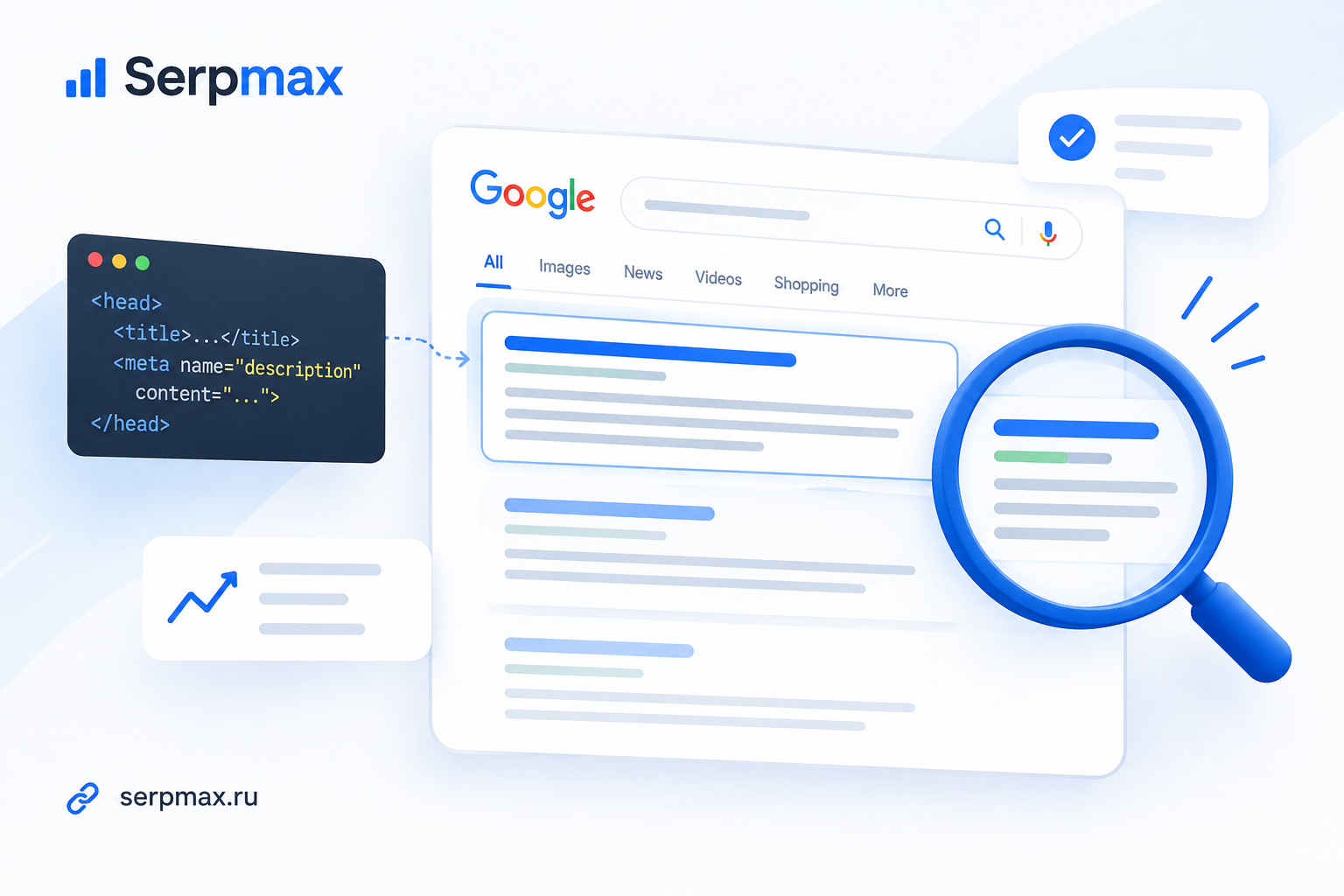
Google Search Preview is a tool that shows how your page will look in Google search results. It displays the title, URL, and meta description as they would appear to users. If your snippet is truncated, the description is missing, or the title does not match the query, you can see it before publishing. In this guide, you will learn how to use Google Search Preview, what to check, and how to fix common issues.
What is Google Search Preview
Google Search Preview is a tool that simulates how a page appears in Google search results. It shows:
— title as it would appear in the snippet;
— URL display;
— meta description or auto-generated snippet;
— truncation of title and description;
— preview for desktop and mobile.
Search engines do not show the full title and description — they truncate based on pixel width. Google Search Preview shows where truncation happens.
Check your snippet via the Google Search Preview tool.
Why use Google Search Preview
Three reasons.
1. Control over the snippet. Title and description are what users see before clicking. If they are truncated or irrelevant, users may not click.
2. CTR optimization. A well-crafted snippet increases click-through rate. Google Search Preview shows how your snippet appears and whether it is compelling.
3. Pre-publication check. You can check the snippet before publishing a page. This prevents issues after indexing.
Google may replace your title and description if it finds more relevant content. Google Search Preview shows the base snippet, but real results may differ.
How to use Google Search Preview
Three ways.
Method 1. Online tool
The fastest way is to use an online tool. The SerpMax Google Search Preview allows you to enter a URL or paste meta tags manually. It shows:
— preview for desktop;
— preview for mobile;
— title and description length in characters and pixels;
— truncation point;
— recommendations.
Method 2. Search for your page
Search Google for your page using site:yourdomain.com/page-url. Look at the snippet. It shows what Google currently displays. But this only works for indexed pages.
Method 3. Google Search Console
In Search Console, use URL Inspection to see how Google sees the page. It shows the indexed version, including the title and description Google selected.
What to check in Google Search Preview
Six things.
1. Title length
Google truncates titles at around 600 pixels on desktop, roughly 50-60 characters for English. Check that your title fits within the limit and the main keyword is visible.
2. Description length
Google truncates descriptions at around 960 pixels on desktop, roughly 140-155 characters for English. Check that the key message is in the first 140 characters.
3. Mobile preview
Mobile snippets are shorter. Check the mobile preview to see how your snippet appears on smartphones.
4. URL display
Google may simplify the URL — remove the protocol, www, or parameters. Check how the URL appears in the preview.
5. Keyword visibility
Check that the main keyword is visible in the snippet. If it is truncated, move it to the beginning.
6. Call to action
Check that the description encourages clicking. A clear call to action increases CTR.
How Google forms snippets
Google forms snippets from three elements: title, URL, and description. But it may change them automatically.
Title. Google uses the <title> tag. If it does not match the query or is truncated, Google may replace it with:
— H1 content;
— first paragraph;
— Open Graph title;
— anchor text from internal links.
URL. Google may simplify the URL — remove the protocol, www, or parameters. If the URL is too long, it is truncated in the middle.
Description. Google uses the meta name="description" tag. If it does not match the query or is missing, Google generates a snippet from page content.
Learn more about snippet length in the article Title and Description Length in 2026.
Common snippet issues
Five common problems.
1. Title truncated
Title is too long and gets cut off. The keyword may not be visible.
How to fix: Shorten the title to 50-60 characters. Move the keyword to the beginning. Move the brand name to the end.
2. Description truncated
Description is too long. The key message is cut off.
How to fix: Shorten the description to 140-155 characters. Put the main message in the first 140 characters.
3. Description missing
No meta description. Google generates a snippet from page content, which may be irrelevant.
How to fix: Add a unique meta description to the page. Learn more in the article Meta Description Checker: How to Audit.
4. Title replaced
Google replaced your title with H1 or first paragraph because it found it more relevant.
How to fix: Align title, H1, and first paragraph. Make the title relevant to the query.
5. URL truncated
URL is too long and gets cut off. The user may not understand what the page is about.
How to fix: Use short, descriptive URLs. Learn more in the article SEO-Friendly URLs.
How to optimize your snippet
Five tips.
1. Keyword at the beginning. Put the main keyword in the first 30-40 characters of the title.
2. Answer the user question. Description should answer the query, not just describe the page.
3. Include the keyword in the description. Google highlights it in the snippet, which increases CTR.
4. Add a call to action. Encourage users to click: "Learn how", "Check now", "Step-by-step guide".
5. Keep it unique. Duplicate titles and descriptions may cause Google to pick one page and ignore the rest.
How to check snippets across your site
Checking every page manually is slow. For a site with many pages, use the SEO Audit by SerpMax. The tool crawls all pages and shows:
— pages with truncated titles or descriptions;
— pages without descriptions;
— duplicate titles and descriptions;
— recommendations.
This gives you a complete list of issues in one report.
How often to check Google Search Preview
Recommended frequency:
— Before publishing a new page — check manually.
— After changing title or description — verify the snippet.
— After a redesign or CMS migration — snippets are often lost or changed.
— If CTR drops — check the snippet for the affected pages.
Frequently Asked Questions
What is Google Search Preview?
Google Search Preview is a tool that shows how your page will appear in Google search results. It displays the title, URL, and description, and shows where truncation happens.
How do I check my Google snippet?
Use the Google Search Preview tool. Or search Google for site:yourdomain.com/page-url. Or use Search Console URL Inspection.
Why is my title truncated in Google?
Google truncates titles at around 600 pixels on desktop, roughly 50-60 characters for English. If your title is longer, it gets cut off. Shorten it to 50-60 characters.
Why is my description missing in Google?
If your page has no meta description, or Google finds it irrelevant to the query, Google generates a snippet from page content. Add a unique, relevant description to control the snippet.
Does Google always use my title and description?
No. Google may replace them with H1, first paragraph, or other content if it finds it more relevant to the query. Align title, H1, and first paragraph to reduce replacements.
How long should a title be for Google?
50-60 characters for English. Google truncates at around 600 pixels on desktop. For Russian, aim for 50-55 characters because Cyrillic is wider.
How do I check snippets across my site?
Use SEO Audit by SerpMax — it crawls all pages and shows truncated titles, missing descriptions, and duplicates. For individual pages, use Google Search Preview.
How often should I check Google Search Preview?
Before publishing new pages, after changing title or description, after redesigns or migrations, and if CTR drops. Snippets are often lost during site changes.