A favicon is the small icon that appears in browser tabs, bookmarks, history, and search results. If your favicon is missing or broken, your site looks less professional, and users have a harder time recognizing it. In 2026, favicons appear in mobile search results and influence brand recognition. In this guide, you will learn what a favicon is, why it matters, how to check it, and how to fix common issues.
What is a favicon
A favicon (favorites icon) is a small icon that identifies a website. It appears in:
— browser tabs, to the left of the page title;
— bookmarks;
— browser history;
— search results (Google and Yandex show favicons in mobile search);
— some mobile browsers on the home screen.
A favicon is part of branding. Without one, the browser shows a default icon, which looks less professional.
Check your favicon via the favicon checker.
Why favicon matters
Four reasons.
1. Brand recognition. Users remember icons and find sites faster among open tabs.
2. Professionalism. A site without a favicon looks unfinished, especially in search results.
3. CTR in search. Google and Yandex show favicons in mobile search results. An icon attracts attention and can improve click-through rate.
4. Branding. A favicon is a mini-logo that reinforces brand identity.
A favicon is not a direct ranking factor. But it affects user perception and indirectly influences behavior signals.
How to check favicon
Three ways.
Method 1. Favicon checker tool
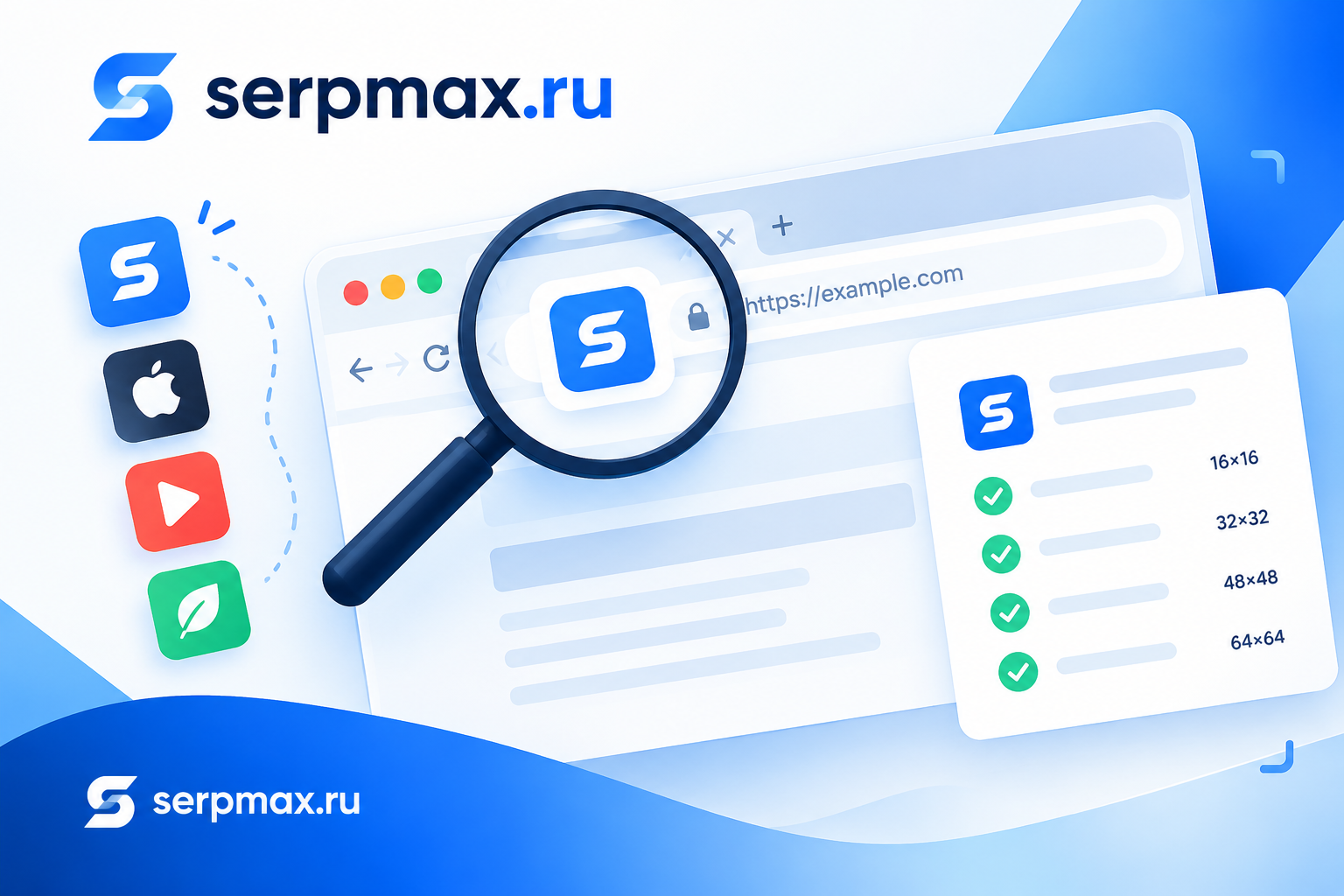
The fastest way is to use an online favicon checker. The SerpMax favicon checker tests any URL and shows:
— whether a favicon is present;
— its format;
— its size;
— whether it displays correctly;
— recommendations for fixing issues.
The tool works with any website.
Method 2. Check in browser
Open the site in a browser. Look at the tab — if there is an icon to the left of the title, the favicon works. If the icon is a default placeholder or missing, the favicon is not set up correctly.
You can also open site.com/favicon.ico. If the file opens, the favicon exists. If it returns 404, it does not.
Method 3. View page source
Open the page, right-click, and select "View page source". Look for this line in the <head>:
<link rel="icon" href="/favicon.ico">
If the tag is present, the favicon is linked. If not, the browser looks for /favicon.ico in the site root by default.
Favicon formats
In 2026, it is recommended to use multiple formats for different devices.
ICO. Classic format. Supported by all browsers. Sizes: 16x16, 32x32, 48x48 pixels.
PNG. Modern format. Supported by most browsers. Sizes: 32x32, 96x96, 192x192 pixels.
SVG. Vector format. Scales without quality loss. Supported by modern browsers. Any size.
Apple Touch Icon. For Apple devices. PNG format, 180x180 pixels.
It is recommended to upload favicons in multiple formats and reference them in <head> with different sizes.
Common favicon issues
Five common problems.
1. Missing favicon
The most common issue. The site has no favicon at all. The browser shows a default placeholder.
How to fix: Create a favicon and link it in HTML.
2. Wrong format
For example, only PNG without ICO. Some browsers do not support PNG for favicons.
How to fix: Use ICO as the primary format plus PNG and SVG for modern browsers.
3. Favicon not in site root
Browsers look for /favicon.ico in the root by default. If the file is elsewhere, it must be referenced in HTML.
How to fix: Place favicon.ico in the root or reference the correct path via <link>.
4. Favicon too complex
Small details are not visible at 16x16. A logo with text or complex graphics turns into a blur.
How to fix: Simplify the design. Use large elements and contrasting colors.
5. Favicon not updating
Browsers cache favicons. If you update the icon, users may see the old version.
How to fix: Add a version to the file name (favicon-v2.ico) or clear the cache via headers.
How to create a favicon
Creating a favicon is a 5-step process.
Step 1. Prepare the image. The favicon should be simple and recognizable. Do not use complex logos with small details — they are not visible at small sizes.
Step 2. Choose sizes. Recommended sizes: 16x16, 32x32, 180x180 (Apple Touch Icon), 192x192 and 512x512 (PWA and Android).
Step 3. Convert to required formats. Use online converters or graphic editors. Save the favicon in ICO, PNG, and SVG (if possible).
Step 4. Upload to the site. Place favicon files in the site root or in the /assets/ folder. The classic favicon.ico should be in the root: site.com/favicon.ico.
Step 5. Link in HTML. Add the following tags to <head>:
<link rel="icon" type="image/x-icon" href="/favicon.ico">
<link rel="icon" type="image/png" sizes="32x32" href="/favicon-32x32.png">
<link rel="apple-touch-icon" sizes="180x180" href="/apple-touch-icon.png">
After uploading, check the favicon via the favicon checker.
Favicon and search engines
Google and Yandex show favicons in mobile search results. This affects how users perceive the site and can improve CTR.
What matters for search engines:
— the favicon should be square;
— the size should be at least 32x32 pixels;
— the format should be ICO, PNG, or SVG;
— the file should be accessible via a direct URL;
— the favicon should not be blocked in robots.txt.
After updating a favicon, search engines may show the old version for several weeks. This is normal — it takes time to recrawl.
How to check favicon across your site
Checking every page manually is slow. For a site with many pages, use the SEO Audit by SerpMax. The tool crawls all pages and shows:
— pages without a favicon;
— pages with broken favicon links;
— pages with favicons that do not display correctly;
— recommendations.
This gives you a complete list of issues in one report.
How often to check favicon
Recommended frequency:
— After creating or updating a favicon — check immediately.
— After a redesign or logo change — favicons are often lost during site changes.
— Once every six months — as part of a technical SEO audit.
— If you notice the favicon is not showing in search — check immediately.
Frequently Asked Questions
What is a favicon?
A favicon is a small icon that appears in browser tabs, bookmarks, history, and search results. It is part of site branding and helps users recognize the site.
How do I check my favicon?
Use the favicon checker. Or open site.com/favicon.ico in a browser — if the file opens, the favicon exists.
What format should a favicon be?
Use multiple formats: ICO (classic), PNG (modern), SVG (vector). ICO for older browsers, PNG and SVG for modern ones.
What size should a favicon be?
16x16 and 32x32 for tabs and bookmarks. 180x180 for Apple Touch Icon. 192x192 and 512x512 for PWA and Android.
Does favicon affect SEO?
Not directly. Indirectly — through CTR in mobile search and brand recognition. Google and Yandex show favicons in mobile search results.
Why is my favicon not showing in search?
Possible causes: the favicon is missing, the format is wrong, the file is blocked in robots.txt, or the search engine has not recrawled the site. Check via the favicon checker.
How do I create a favicon?
Prepare a square image (16x16, 32x32, 180x180), convert to ICO and PNG, upload to the site, and link it in HTML via <link rel="icon">.
How often should I check my favicon?
After creating or updating, after a redesign, once every six months as part of an SEO audit. If the favicon is not showing, check immediately.