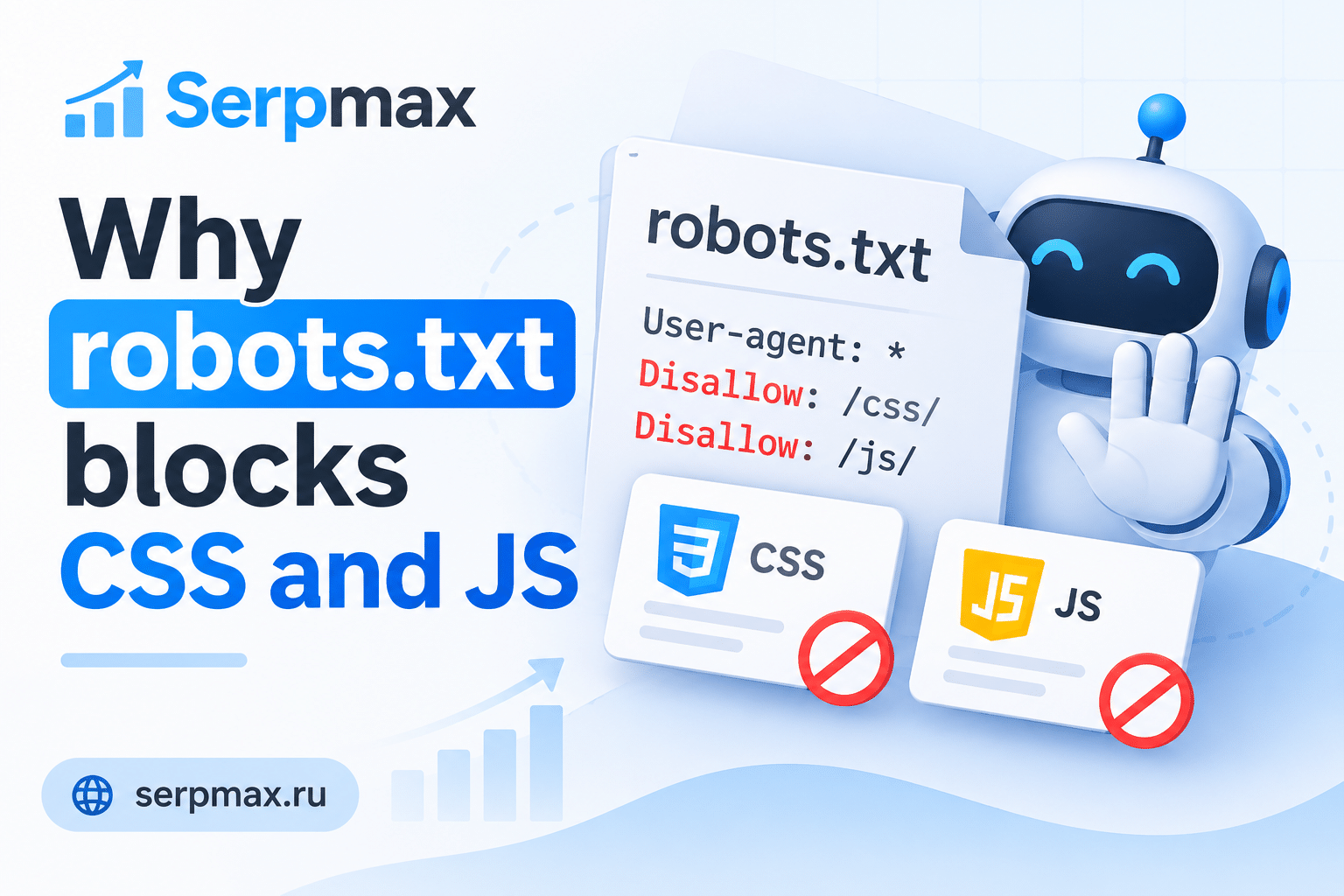
You added Disallow rules for CSS and JavaScript to robots.txt, thinking it would save crawl budget or hide resources. Now Google does not render your pages correctly, content is missing from the index, and internal links are not discovered. Blocking CSS and JS was a common recommendation years ago, but today it breaks rendering and indexing. This guide explains why robots.txt blocks CSS and JS, what happens when it does, and how to fix it.
What robots.txt does and what it does not do
Robots.txt tells search engine crawlers which URLs they can and cannot request. A Disallow rule prevents crawling, but it does not prevent indexing if the page is linked from elsewhere.
When you block CSS and JavaScript files, Googlebot cannot download them. Without these files, the page cannot be rendered as users see it. Google may see only the raw HTML, missing content that is added or styled by scripts.
The result: Google indexes a broken version of the page, or decides the page is not worth indexing at all.
Why blocking CSS and JS breaks rendering
Modern websites rely on CSS for layout and JavaScript for content, navigation, and interactivity. If Googlebot cannot access these files, it cannot render the page correctly.
What happens when CSS is blocked:
— layout is broken;
— content may be hidden or misaligned;
— Google may see a different page than users.
What happens when JavaScript is blocked:
— dynamic content is missing;
— internal links generated by scripts are not discovered;
— page functionality is broken.
Google evaluates the rendered page. If rendering fails, indexing and ranking suffer.
Reason 1: outdated advice from old SEO guides
Many old SEO guides recommended blocking CSS and JS in robots.txt to improve crawl efficiency. This advice is outdated and harmful.
What to check:
— does robots.txt contain Disallow rules for .css or .js files;
— are these rules still needed;
— were they added years ago and forgotten.
The fix: remove Disallow rules for CSS and JS. Allow Googlebot to access these files.
Use robots.txt checker to see which paths are blocked.
Reason 2: trying to hide resources from other bots
Some site owners block CSS and JS to prevent scraping or reduce server load. But this also blocks Googlebot.
What to check:
— are there Disallow rules for asset directories;
— are these rules intended for all bots;
— can you use user-agent-specific rules instead.
The fix: if you need to block specific bots, use user-agent-specific rules. Do not block Googlebot from CSS and JS.
Reason 3: CMS or plugin generated rules
Some CMS platforms and security plugins add Disallow rules for CSS and JS automatically. The site owner may not know these rules exist.
What to check:
— does the CMS generate robots.txt;
— does a plugin modify robots.txt;
— are there rules for /wp-content/, /assets/, or /static/.
The fix: review and edit the generated robots.txt. Remove rules that block CSS and JS.
Reason 4: trying to block staging or dev resources
Sometimes CSS and JS are blocked to prevent indexing of staging or development assets that are accidentally accessible in production.
What to check:
— are staging assets accessible in production;
— are they blocked in robots.txt;
— are production assets also blocked by mistake.
The fix: block staging assets with noindex or authentication, not with robots.txt rules that also affect production CSS and JS.
Reason 5: misunderstanding of crawl budget
Some site owners block CSS and JS to save crawl budget. But Google needs these files to render pages. Blocking them does not save budget — it wastes it on broken rendering.
What to check:
— are CSS and JS blocked to save budget;
— is the site large enough to have crawl budget issues;
— are there better ways to optimize crawl budget.
The fix: allow CSS and JS. Optimize crawl budget by removing low-value pages, fixing server speed, and improving internal linking.
How to diagnose blocking issues
A practical sequence:
— check robots.txt for Disallow rules for .css and .js;
— use Search Console URL Inspection to see the rendered HTML;
— compare rendered HTML with the page source;
— check if content and links are missing;
— check if Google reports rendering issues.
If content is visible in the browser but missing in the rendered HTML, blocking may be the cause. For a broader audit, SEO audit can help verify robots.txt, rendering, and indexing in one place.
How to fix blocking issues
Fix steps:
— remove Disallow rules for CSS and JS;
— allow Googlebot to access asset directories;
— if needed, use user-agent-specific rules for other bots;
— test rendering after changes;
— request re-crawl in Search Console;
— monitor indexing.
FAQ
Why does blocking CSS and JS in robots.txt hurt SEO?
Googlebot cannot render the page without these files. Content may be missing, links may not be discovered, and indexing may fail.
Is blocking CSS and JS ever a good idea?
No, not for Googlebot. You can use user-agent-specific rules for other bots if needed, but Googlebot must access CSS and JS.
How do I check if CSS and JS are blocked?
Use a robots.txt checker to see Disallow rules for .css and .js files. Check Search Console for rendering issues.
Does blocking CSS and JS save crawl budget?
No. It wastes budget on broken rendering. Google still crawls the page but cannot render it correctly.
What happens if only JavaScript is blocked?
Dynamic content and JavaScript-generated links are missing. Google sees an incomplete page.
What happens if only CSS is blocked?
Layout is broken. Content may be hidden or misaligned. Google may see a different page than users.
Can I block CSS and JS for other bots but not Googlebot?
Yes. Use user-agent-specific rules in robots.txt. Allow Googlebot to access CSS and JS.
How long does it take to fix rendering after unblocking?
Days or weeks. Request re-crawl and monitor Search Console.
Does blocking CSS and JS affect Core Web Vitals?
Indirectly. If Google cannot render the page, it cannot measure CWV correctly. The page may be judged as poor.
What if my CMS automatically blocks CSS and JS?
Review and edit robots.txt. Disable the plugin or setting that adds the rules.