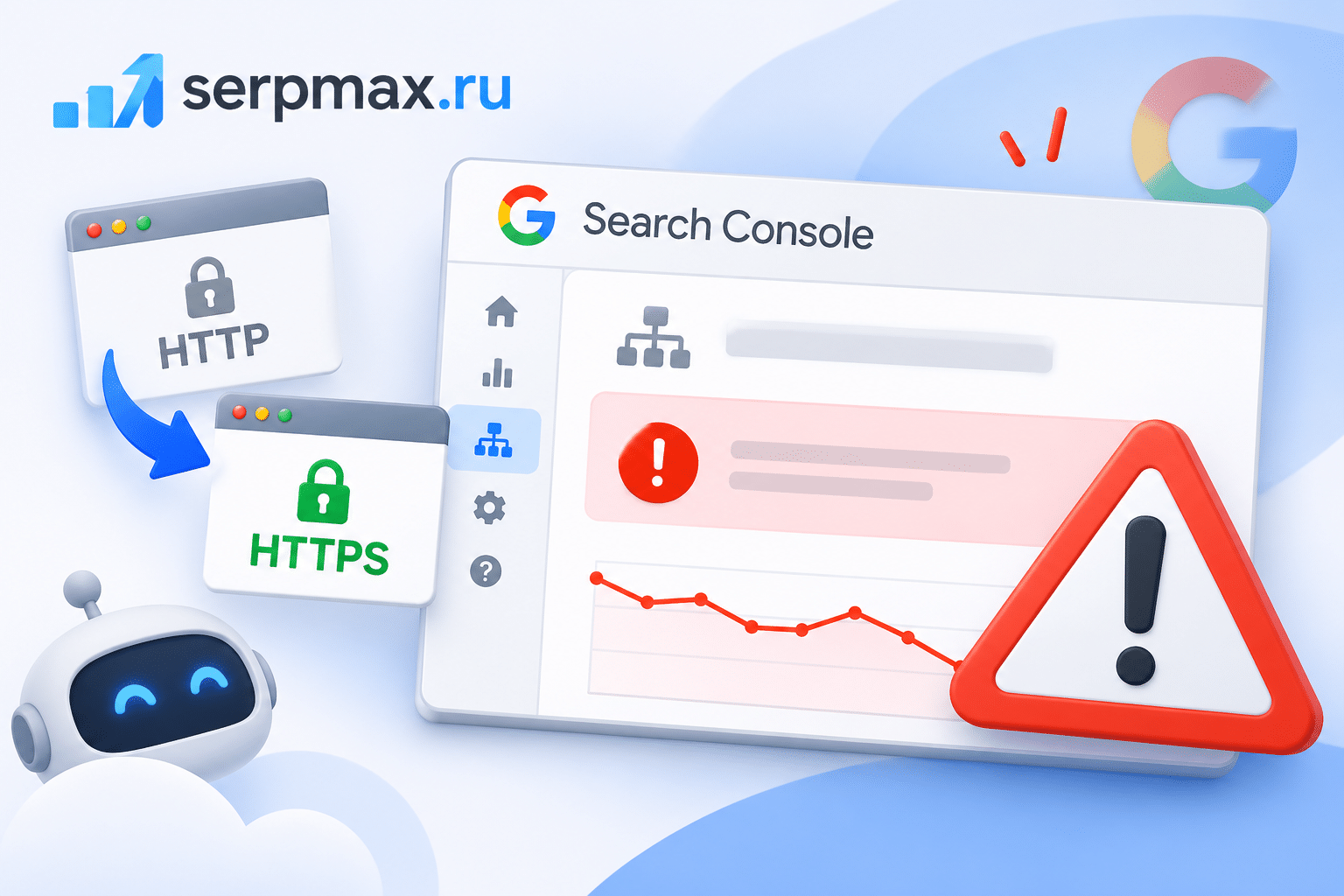
You migrated to HTTPS. The site works. The redirects are in place. But Google Search Console shows that your sitemap cannot be fetched. The status is Could not fetch or Failed. The sitemap is valid, the URLs inside it are correct, but Google cannot read the file itself.
This is a specific failure mode of HTTPS migrations. The sitemap is often overlooked because the focus is on redirects and canonical tags. But if Google cannot fetch the sitemap, new pages are discovered slower, and existing pages may be re-crawled less often.
This guide explains why Google cannot fetch your sitemap after HTTPS migration, how to diagnose each cause, and how to fix it.
How to confirm Google cannot fetch the sitemap
The first check is Google Search Console. Go to Sitemaps under Indexing. Look at the status of your sitemap. If it says Could not fetch, Failed, or Has errors, Google cannot read the file.
The status message often includes a reason. Common reasons: HTTP error 404, HTTP error 500, SSL error, Redirect error, or Robots.txt blocked. The reason points to the cause.
The second check is a direct fetch. Use the sitemap checker on the sitemap URL that is submitted in Search Console. The tool shows whether the file is accessible, what HTTP status it returns, and whether the content is valid XML. If the checker fails to fetch the file, Google will also fail.
The third check is the sitemap URL itself. Look at the protocol. Is it http:// or https://? Is there a redirect? Is the URL the same one you submitted to Google? A mismatch between the submitted URL and the actual sitemap location is a common cause.
Reason 1: sitemap URL still uses HTTP
After migrating to HTTPS, the sitemap URL in Search Console may still be the HTTP version. If the HTTP version redirects to HTTPS, Google may follow the redirect and fetch the HTTPS version. But if the redirect is misconfigured, or if Google treats the redirect as an error for sitemaps, the fetch fails.
Google recommends submitting the HTTPS version of the sitemap after migration. If the old HTTP sitemap URL is still in Search Console, it may show errors even if the HTTPS sitemap works.
How to check: in Search Console, look at the sitemap URL. If it starts with http://, remove it and add the https:// version. The sitemap content may be identical, but the URL matters for fetching.
The fix: submit the HTTPS sitemap URL. If the HTTP sitemap redirects to HTTPS, ensure the redirect is a single 301 and the target is the exact HTTPS sitemap URL. Avoid chains.
Reason 2: SSL certificate error on the sitemap URL
If the SSL certificate on the domain has a problem, Google may refuse to fetch the sitemap. This can happen if the certificate expired, if it does not cover the www subdomain, or if the certificate chain is incomplete.
The sitemap is fetched over HTTPS. If the SSL connection fails, the fetch fails. The error in Search Console may say SSL error or Could not fetch without a specific reason.
How to check: use the SSL lookup tool on the sitemap URL. The tool shows the certificate issuer, expiry date, and whether the chain is complete. If the certificate is expired or invalid, that is the cause.
The fix: renew the SSL certificate if expired. If the certificate does not cover www, either get a certificate that does, or ensure the sitemap URL uses the domain that the certificate covers (non-www or www, whichever matches the certificate).
For a broader check of SSL issues after migration, the article on why the SSL chain is incomplete explains how to diagnose certificate chain problems.
Reason 3: redirect loop from HTTP to HTTPS
A redirect loop occurs when the HTTP URL redirects to HTTPS, but the HTTPS URL redirects back to HTTP. This can happen if the server configuration has conflicting rules, or if a CDN or proxy adds its own redirect.
Google cannot fetch a sitemap that is in a redirect loop. The fetch fails with a redirect error. The sitemap may be accessible in a browser if the browser breaks the loop or caches a previous version, but Googlebot does not.
How to check: use the URL redirect checker on the sitemap URL. The tool shows the full chain. If the chain goes HTTP → HTTPS → HTTP, or if it exceeds a few hops, there is a loop or an excessive chain.
The fix: identify the source of the conflicting redirect. Common sources: the CMS has a force HTTPS setting that conflicts with a server-level redirect; a CDN is configured to redirect to HTTP for some reason; a plugin adds a redirect that conflicts with the server configuration. Fix the conflicting rule so that the sitemap URL resolves directly to the HTTPS version with a single 301 or a direct 200.
Reason 4: sitemap blocked by robots.txt after migration
If robots.txt blocks the sitemap URL, Google cannot fetch it. This can happen if the robots.txt file was updated during migration and a new rule accidentally blocks the sitemap directory or the sitemap file itself.
A common mistake: adding a Disallow: / rule during maintenance and forgetting to remove it. Or adding a rule that blocks *.xml files.
How to check: open robots.txt and look for rules that could match the sitemap URL. Use the robots.txt checker to see if the sitemap URL is blocked. The tool shows which rules apply to a given URL.
The fix: remove the blocking rule. If the rule was intentional for other files, adjust it to exclude the sitemap. For example, instead of Disallow: /*.xml, use a more specific rule that does not affect the sitemap.
How to fix sitemap fetch errors: step by step
The fix depends on the cause, but the sequence is the same.
Step 1: Remove the old HTTP sitemap from Search Console. If the submitted sitemap URL uses HTTP, delete it. This prevents Google from repeatedly trying to fetch a URL that may redirect or fail.
Step 2: Submit the HTTPS sitemap. Use the exact HTTPS URL of the sitemap. The URL should return 200 OK directly, without redirects. Use the sitemap checker to confirm.
Step 3: Fix SSL issues. If the SSL lookup shows an expired certificate or an incomplete chain, fix it before resubmitting. Google will not fetch a sitemap over a broken SSL connection.
Step 4: Fix redirects. Ensure the sitemap URL does not redirect. If it must redirect (for example, from HTTP to HTTPS), use a single 301 with no chains or loops.
Step 5: Check robots.txt. Ensure no rule blocks the sitemap. The sitemap should be allowed for all user agents.
Step 6: Resubmit and monitor. After fixing the cause, resubmit the sitemap in Search Console. The status should change to Success within a few hours to a few days. If it does not, re-check each cause.
How to verify Google can fetch the sitemap
After resubmitting, check the status in Search Console. The sitemap should show Success and a Last read date. If the status stays at Could not fetch, open the sitemap details and look at the error message.
Use the sitemap checker again to confirm the sitemap is accessible from an external tool. If the checker can fetch it but Google cannot, the issue may be a Google-specific block (robots.txt for Googlebot, or a firewall rule that blocks Google IPs).
Check the Discovered URLs count in Search Console. If Google successfully fetches the sitemap, it will start discovering URLs from it. A rising count confirms that the sitemap is being read.
FAQ
Do I need to resubmit the sitemap after HTTPS migration?
Yes. The protocol change means the sitemap URL changes. Even if the sitemap content is identical, Google treats the HTTP and HTTPS URLs as different. Remove the old HTTP sitemap and submit the HTTPS one.
Can Google fetch a sitemap that redirects?
Google can follow redirects for sitemaps, but it is not recommended. A redirect adds a hop and can fail if the chain is long or if the redirect target has an error. Submit the final HTTPS URL directly.
What does SSL error mean in the sitemap status?
It means Google could not establish a secure connection to fetch the sitemap. The certificate may be expired, invalid, or not covering the URL you submitted. Check the certificate with an SSL lookup tool.
How long does it take for Google to fetch the sitemap after fixing the error?
Usually a few hours to two days. If the sitemap was previously failing for a long time, it may take longer. Request a re-fetch in Search Console if the status does not change within a week.
Can I use a sitemap index after migration?
Yes. If you use a sitemap index, submit the HTTPS URL of the index. The child sitemaps should also use HTTPS URLs. Ensure all child sitemaps are accessible and return 200 OK.